All your money.
One private hub.
$Peek puts your cash flow, budgets, bills, loans, investments and goals on one screen, and explains every number in plain words. It runs on your own computer, so your finances never sit on someone else's server.
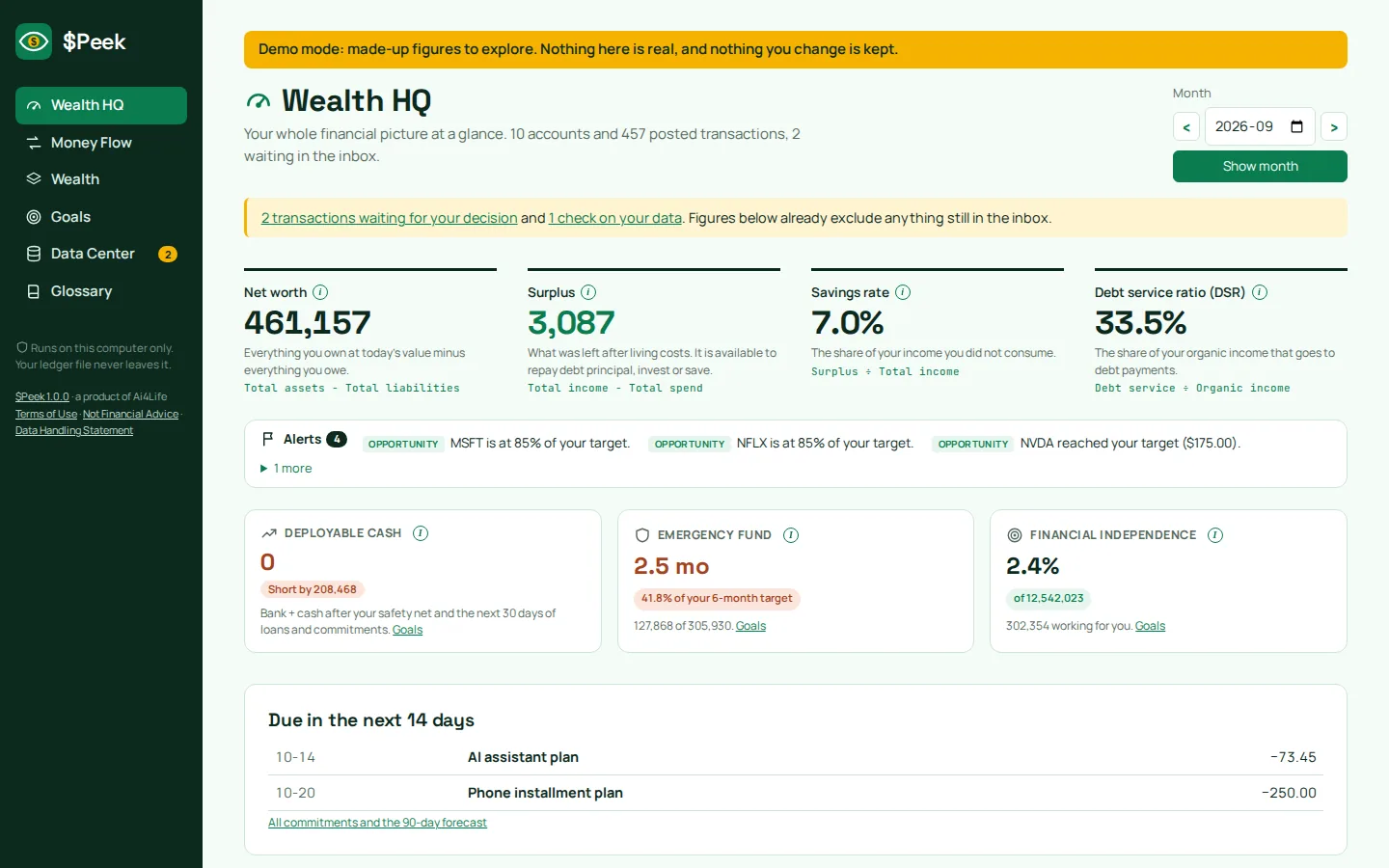
Example figures from $Peek's demo mode.
You don't need to be rich to need a money plan.
Most people don't have a spending problem; they have a visibility problem. Salary comes in, bills, installments and subscriptions go out, and by the end of the month nobody can say exactly where it went. $Peek makes that picture visible in minutes.
See it before it hits
Installments, bills and subscriptions due in the next 14 days, a full-year calendar of charges, and a 90-day cash forecast, so a payment never catches you off guard.
Build a safety net
$Peek tracks your emergency fund in months of essential spending, and tells you how much cash is truly free once next month's loans and commitments are covered.
Watch your net worth grow
Bank balances, property, investments and money you lent, minus everything you owe: one honest number, month after month.
Loans are never income.
A loan landing in your account feels like money. $Peek records it as debt, so your "income" is never inflated.
Investing is never spending.
Money moved into stocks or crypto is still yours. It grows your wealth instead of shrinking your budget.
Money you lent is still yours.
Lent a friend 5,000? It stays on your balance sheet until it comes back, or you choose to write it off.
Ten minutes a week is enough.
Good money management isn't about spreadsheets or finance degrees. It's a simple loop: see where money went, plan what's coming, protect yourself with a safety net, then grow what's left. $Peek does the sorting and the maths; you make the decisions.
From scattered transactions to one clear picture.
Bring in your transactions however suits you. $Peek sorts them with rules you control, asks you about anything unclear, and turns the result into reports that explain themselves.
Bring your data
Pick one source, or mix them.
- TranSMS bank-SMS sync
- Bank statement (CSV / Excel)
- Add a transaction by hand
$Peek sorts it
Every row gets a wallet and a meaning.
- Remembered merchants post automatically
- New ones wait in your Inbox
- Duplicates are recognised
See the picture
Reports update in one click.
- Cash flow & budgets
- Bills, loans, debt-free date
- Net worth, investments, goals
Decide with confidence
You stay in charge.
- Alerts on risks and targets
- What-if extra loan payments
- Every figure shows its formula
TranSMS
Forward your bank SMS to the TranSMS Telegram bot and they're logged for you. Send /peek to the bot, paste the code into $Peek, and press Refresh. About TranSMS (separate subscription).
Bank statements
Export a CSV or Excel statement from any bank's online banking and import it. The file is read on your computer and never uploaded anywhere.
Add by hand
Cash payments or one-offs take seconds with Add transaction. $Peek warns you if the same entry later arrives from a statement or TranSMS.
Six tabs. Your whole financial life.
Click through the real screens. Figures shown are $Peek's demo data.
Bank statement import
Any bank's CSV or Excel export. Safe to re-import: duplicates are skipped.
Smart Inbox
Unclear rows wait for one tap. "Remember this merchant" teaches $Peek for next time.
Real estate
Equity, loan-to-value, rental yield, and profit if you sold today.
Islamic financing
Profit-rate financing such as Murabaha sits alongside conventional loans.
Phone access
Open $Peek from your own phone over a private network, PIN-protected.
PIN lock
Lock $Peek on this computer and on other devices, with automatic re-lock.
Reconcile checks
Flags balances that don't add up, so you can trust the totals.
One-click backup
A complete copy of your ledger, saved where you choose.
Your finances live on your PC. Not in our cloud.
$Peek has no sign-up, no tracking and no advertising. Ai4Life never receives your transactions, balances, loans or reports. Only the few things below ever go online, and only when you choose.
One price. Yours for life. No subscription.
Pay once and keep $Peek version 1, including every 1.x update. Try it risk-free for 7 days.
- All six tabs and every feature
- All 1.x updates, free
- Windows installer, no setup skills needed
- Bank statements, manual entry, TranSMS link
- Client guide and email support
- 7-day full refund
One licence = one Windows computer. Future major versions (v2) will be offered to existing customers at a reduced upgrade price; version 1 keeps working either way.
How $Peek compares
TranSMS (automatic bank-SMS logging) is a separate, optional subscription. $Peek works fully without it.
Questions, answered honestly.
Can't find yours? Message us on Instagram @ai.4_life or email support@ai4life.ae.
Get $PeekAbout $Peek
What makes $Peek special compared to other financial apps?
Most finance apps live in the cloud, charge monthly, and ask you to connect your bank. $Peek does the opposite:
- Private: it runs on your own Windows PC and your ledger never leaves it.
- Pay once: a Lifetime licence instead of a subscription.
- Honest accounting: loans are never counted as income, investing is never counted as spending, and money you lent stays yours.
- Everything in one place: spending, bills, loans, Islamic financing, investments, property and goals, not just a budget.
- It teaches as it reports: every figure shows its definition and formula.
Who is $Peek designed for?
Anyone who earns, spends and wants to stay in control, without needing finance knowledge. It's especially useful if you:
- have a salary plus installments, credit cards or financing;
- juggle several bank accounts, wallets or cards;
- invest in stocks, crypto or property and want one net-worth figure;
- run a business or freelance and want your personal finances kept clear of it.
$Peek is for personal and household finances. It isn't company bookkeeping or accounting software.
How does $Peek explain financial terms and metrics?
Every number on screen carries a short definition and its formula in small print underneath, for example "Savings rate = Surplus ÷ Total income". Tap the i button next to it for why it matters and a common rule of thumb. The Glossary tab collects all of them in one searchable list, written in plain English for non-experts.
How does $Peek tell my different transactions apart?
Each transaction is placed in a wallet (Income, Essentials, Entertainment, Development) and a sub-category, and every sub-category has a meaning, such as "earned income", "fixed essential cost", "loan repayment" or "investment". That meaning decides how it's counted:
- A loan payout is recorded as debt, not income.
- A loan installment is split into principal (reduces debt) and profit or interest (a cost).
- Moving money to a broker is investing, not spending.
- Transfers between your own accounts aren't counted twice.
Merchants you've categorised before are posted automatically. Anything new or ambiguous waits in the Inbox for you to decide. $Peek never guesses silently.
How and where is $Peek integrated with AI?
The $Peek app itself doesn't send your data to any AI. It sorts transactions with transparent rules: merchants you've taught it, and the meanings you give your categories. You can always see why something was counted the way it was.
AI is used in TranSMS, the optional companion service: when you forward a bank SMS, TranSMS uses an AI text-extraction service to read the amount, merchant and date and suggest a category, which you confirm in Telegram. If you'd rather no AI touches your transactions, import bank statements instead.
Is $Peek financial advice?
No. $Peek organises and explains your own figures; it doesn't recommend products, investments or loans. Rules of thumb shown in the app are general conventions. For decisions, consider your situation and, where appropriate, a professional adviser licensed in the UAE. See the Not Financial Advice notice.
Privacy & security
How does $Peek keep my data private and secure?
- Your ledger is a file in $Peek's data folder on your PC. Ai4Life never receives a copy.
- No account, no analytics, no ads, no tracking.
- $Peek never asks for your bank username or password.
- Only three things ever go online, each when you trigger it: one-time activation, live prices (ticker symbols only), and the optional TranSMS link.
- An optional PIN locks the app, with automatic re-lock when idle.
Because the data is on your computer, keep Windows protected with a password and make regular backups (Goals › Back up now). Full details: Data Handling Statement.
Does $Peek connect to my bank or need my banking password?
Never. You bring transactions in by importing a statement your bank lets you download, by TranSMS, or by typing them. $Peek has no way to log in to or move money from any account.
Do I need the internet to use $Peek?
Only to activate (once, plus once more to collect your Lifetime key), to refresh live investment prices, and to sync TranSMS if you use it. Everything else, including all reports, works offline.
Data sources & devices
Do I have to link TranSMS to $Peek?
No. TranSMS is optional and sold separately. Without it, import your bank statements (CSV or Excel from any bank) or add transactions by hand. Many people mix both.
If you do use TranSMS, linking takes a minute: send /peek to the TranSMS bot, paste the code into Data Center › Import & refresh › Link TranSMS, and press Refresh.
Which banks does it work with?
Any bank that lets you export a statement as CSV or Excel. $Peek recognises the usual date, description, amount or debit/credit columns automatically. Importing an overlapping statement is safe: rows already in $Peek are skipped.
Can I access $Peek remotely, away from my PC?
Yes, from your own phone or tablet's browser, through a free private network called Tailscale. Start $Peek with Phone access on your PC, then open it on your phone. Your PC needs to be on, and other devices always need your PIN.
$Peek isn't a cloud app, so there's no public web address, and that's deliberate. Never use phone access over public Wi-Fi without Tailscale.
Does $Peek work on Mac, iPhone or Android?
$Peek installs on Windows 10 and 11. You can view it from an iPhone or Android phone through phone access (above). A native Mac version isn't available yet; follow @ai.4_life for news.
Which currency does $Peek use?
Your ledger is in UAE dirhams (AED). Stocks and crypto are shown in US dollars with the AED value alongside, so you can relate to the markets and still see your total wealth in one currency.
Does it handle Islamic financing?
Yes. Profit-rate financing such as Murabaha is tracked like any loan: balance, profit remaining, next debit, debt-free date and the effect of extra payments. You choose your own neutral loan names.
Licence, updates & refunds
What if I change my laptop or reinstall Windows?
Your licence is tied to one computer through its Machine ID. A new laptop, or a fresh Windows install, creates a new Machine ID. Here's what to do:
- Before you switch: in $Peek, go to Goals › Back up now, and copy the backup (or the whole $Peek data folder) to a USB drive or cloud storage you trust.
- On the new setup: install $Peek and note the Machine ID on the activation screen.
- Contact Ai4Life with your purchase email and the new Machine ID. We issue a key for the new computer and retire the old one (reasonable transfers are covered by the Terms of Use).
- Restore your backup, and everything is as you left it.
Reinstalling $Peek on the same Windows installation keeps the same Machine ID, so you can simply activate again with your Gumroad key.
Is this a subscription? What about updates?
No subscription. You pay once for version 1, and every 1.x update is free; you'll hear about them by email. A future version 2 would be a new product, offered to existing customers at a reduced upgrade price. You're never obliged to upgrade.
Can I try $Peek before buying?
$Peek includes a demo mode filled with made-up figures, so you can explore every screen without entering your own data. And every purchase has a 7-day full refund window.
How do refunds work?
Within 7 days of purchase, use the refund form linked in your welcome email. We process it through Gumroad and confirm by email. Your first key covers the refund window; your permanent Lifetime key is sent automatically once the 7 days pass.
Can my family use $Peek?
Yes, for your household's finances on the one computer your licence is activated on. Each additional computer needs its own licence.
What if I lose my data?
Because your data never leaves your PC, Ai4Life can't recover it for you. That's the trade-off for real privacy. Use Goals › Back up now regularly and keep a copy somewhere safe.
How do I get help?
Read the Client Guide that comes with $Peek, or message @ai.4_life on Instagram, or email support@ai4life.ae. Support runs on UAE business days.
Take one honest look at your money.
Pay once, keep it for life, and keep your data where it belongs: with you.